
FocuSee Review: AI Screen Recording With Auto Zoom, Cursor Tracking & Smart Editing

Overview: What is FocuSee
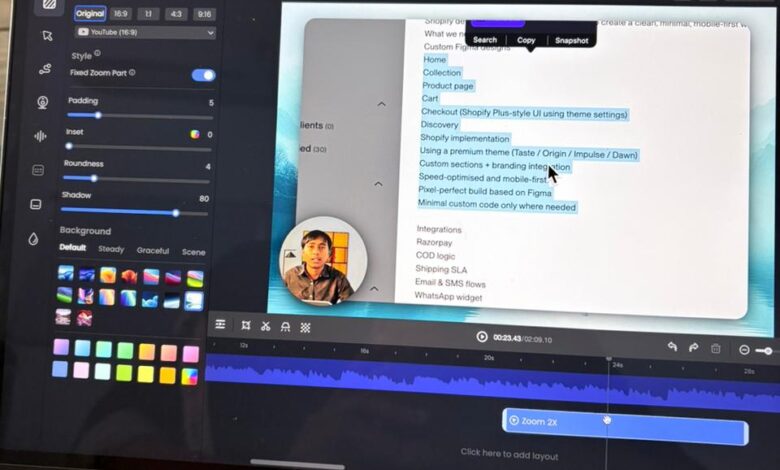
FocuSee is an AI-powered screen recorder designed to not only capture your screen (and webcam/audio) but to automatically edit the recording — adding auto zooms, cursor-tracking, click highlighting, silence removal, AI audio enhancement, captions/subtitles, and more.
It supports Windows and macOS, and offers multiple recording modes (full screen, custom area, or a specific window) — giving flexibility depending on what you need to capture.
The key idea behind FocuSee: instead of leaving all editing to you, it uses AI and automatic detection to “polish” your raw footage — so you end up with smooth, professional-looking videos without spending hours editing manually.
It’s particularly popular among content creators, educators, course-makers, software developers, marketers — basically anyone who needs to create tutorials, product demos, online course videos, or social-media style content.
If you want to try or download FocuSee, you can do so from their official website: Download FocuSee – Windows & Mac.
What FocuSee Does — Key Features & Strengths
Here’s a deep dive into the standout features that make FocuSee more than a typical screen recorder:
Auto Zoom & Cursor Animation
- FocuSee automatically detects where your mouse clicks happen, and applies a zoom-in effect there — so the video dynamically zooms to the area you clicked. No need for manual keyframe zoom editing.
- You can later tweak zoom levels or positions if you want more precise framing.
- Cursor customizations: change cursor style, size, click effects; add dynamic animations or click animations — making each click visually meaningful and helping guide viewer attention.
Screen + Webcam + Audio + More
- Record screen, webcam, and microphone audio simultaneously — useful if you want picture-in-picture tutorials, commentary, product demos, or walkthroughs.
- Teleprompter support: you can display a script on-screen during recording (customizable speed, font, transparency) — handy for smooth, professional narration.
- Background editing: you can blur or replace webcam background (or remove background) — good for privacy or improving visual presentation.
Automatic Post-Production with AI
- Automatic removal of silence and filler words (“ums,” long pauses) — making the final video more concise and polished without manual cutting.
- AI-powered audio enhancement / noise reduction — improves the quality of voiceovers and commentary without needing external audio editing software.
- Automatic generation of captions/subtitles, synchronized with the video — useful for accessibility, global audience reach, or social-media usage.
Easy Exporting & Social-Ready Video Options
- Export in MP4 (up to 4K) or GIF formats, and choose common social-media aspect ratios (1:1, 16:9, 9:16 etc.) — good for YouTube, Instagram, TikTok, LinkedIn, or online courses.
- Built-in editor for adding annotations, blur effects (to hide sensitive info), spotlight effects, keyboard shortcuts overlay, watermarks — so you get a full editing suite embedded right after recording.
Flexible Workflow & Ease of Use
- Simple UI and intuitive workflow — the process is: record → stop → FocuSee automatically analyzes and applies enhancements → you tweak if needed → export. Many users highlight this simplicity. (G2)
- Works on both Windows and Mac.
Real-User Feedback: What Users Say
From user reviews (e.g. on review platforms and blogs), some recurring patterns emerge:
What users like:
- “Auto zoom-in zoom-out feature is awesome.” (G2)
- Many appreciate how much time it saves — enabling them to produce more videos in the same time, especially for tutorials, demos, or quick content. (G2)
- The UI and UX are considered clean and intuitive — even beginners can get started quickly without learning complex editing tools. (G2)
How FocuSee Fits Different Use Cases — Who Should Use It
Given its feature set, here are scenarios where FocuSee can shine:
- Tutorial creators, educators, course makers — If you’re producing screencasts (coding walkthroughs, data analysis, software how-tos, design demos), FocuSee’s auto-zoom + cursor tracking + annotation + captions makes the content more digestible and professional.
- Product demos / SaaS walkthroughs / marketing videos — The auto polish + ability to record webcam + screen + mic helps create high-quality promo videos with minimal effort — ideal for product launches or marketing pitches.
- Content creators for social media or platforms like YouTube, LinkedIn, TikTok — Built-in export presets and aspect-ratio support help adapt videos across platforms without extra editing software.
- Indie hackers, solo founders, small teams — If you don’t have a full video editing setup but need to produce videos for products, walkthroughs, or course content — FocuSee offers a simple, one-tool workflow.
Where FocuSee Could Be Better / What to Watch Out For
No tool is perfect — and FocuSee has a few limitations or tradeoffs worth noting:
- The automated zoom or animation effects — while very convenient — may sometimes feel less smooth compared to a manually edited video. If you aim for cinema-grade polish, manual editing might still beat auto effects.
- Performance: on older machines or when running heavy workloads (multiple monitors, long recordings) — auto processing may be slow or resource-intensive.
- For power users wanting deep video editing (fine-tuned transitions, multi-track editing, advanced color grading, custom animations etc.), FocuSee’s simplified editing may feel limited.
- Some advanced AI features (like best audio enhancement, certain effects) might be behind a paywall or credit-based system — so the free trial may not unlock the full potential.
- Minor bugs reported (particularly on Windows dual-monitor setups) — though not universal, it’s something to be aware of.
Verdict: Is FocuSee Worth It?
For anyone who needs to produce screen-based videos quickly, professionally, and without a steep editing learning curve, FocuSee is very compelling. It hits a sweet spot between simplicity and power: you get automated post-production, polish, and export-ready output — all in one tool.
If you produce tutorials, demos, webinars, course content, or regular social videos, FocuSee can save you hours (or even days) of manual editing. For a solo creator or small team (like yourself, Inu — since you build courses, create content, and blog regularly), this kind of tool can drastically cut production time and lower the barrier to video content creation.
However, if you want highly customized videos with deeper editing than zoom/cursor/captions, or you have very specific animation/color-grading needs — you might eventually outgrow FocuSee. It’s also worth considering your computer’s performance and whether you’re okay with potential minor hiccups (animations not always perfectly smooth, or occasional bugs).
Final Thoughts
FocuSee stands out as a modern screen recording + editing hybrid — using AI and automation to take away the tedium of manual editing. For creators producing educational, marketing, demo, or social videos, it’s a strong candidate to streamline workflows and produce polished content fast.
If you want to try or download FocuSee, you can do so from their official website: Download FocuSee – Windows & Mac.